 4:34
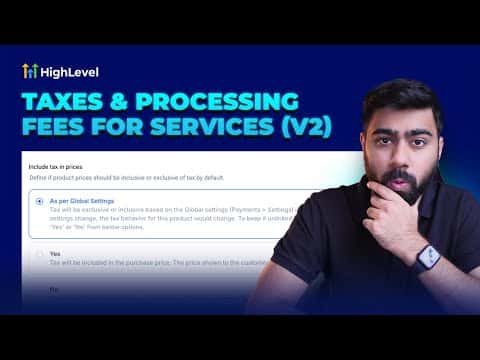
4:34概要. Tax and service fee configuration in GoHighLevel is managed through the Payments settings area, where you create named rates and assign them to specific products or apply them globally. Once configured, taxes and fees appear as line items on invoices and order confirmations, giving customers a clear breakdown of what they are paying. This is particularly useful for businesses selling physical goods, services with regulatory tax requirements, or subscription products.
ステップ
Open Payments Settings
Go to Payments in the left menu, then Settings, and look for the Taxes or Service Fees section depending on what you need to configure.
Create a tax or fee rate
Click to add a new rate, give it a descriptive name (for example, State Sales Tax), enter the percentage, and save. You can create multiple rates for different regions or product types.
Assign the rate to products
When creating or editing a product, select the applicable tax or fee from the dropdown. The rate will then be calculated and displayed as a line item on all related invoices.