 1:03
1:03概要. This tutorial shows how to configure the GoHighLevel webchat widget, copy its embed code, and install it on both GoHighLevel-hosted websites and GoHighLevel funnels by pasting the script into each property's body tracking code field.
学べること
- Customize the chat bubble appearance and behavior in widget settings
- Copy the generated embed code with one click
- Add the widget to a GoHighLevel website via the site settings tab
- Add the widget to a GoHighLevel funnel via the funnel settings tab
- Preview the installed widget in an expanded state to confirm it works
ステップ
Configure the widget
Click the Chat Widget icon in the left-hand column. Work through each section (such as Chat Bubble) and adjust colors, text, and behavior. The preview on the right updates live as you make changes.
Copy the embed code
Click the Get Code button at the top of the screen, then click Copy Code. The entire script is now on your clipboard.
Install on a GoHighLevel website
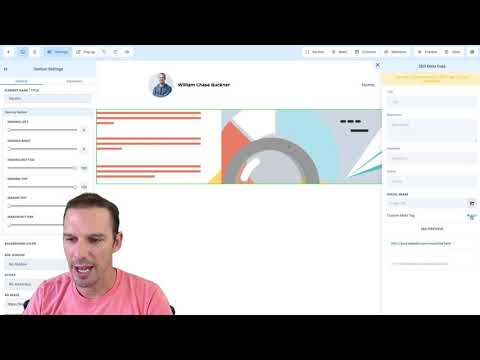
Go to Sites, open the website where you want the widget, and click its Settings tab. Paste the copied script into the Body Tracking Code field and hit Save.
Install on a GoHighLevel funnel
Open the funnel, click its Settings tab, and paste the script into the Body Tracking Code field there. Save the settings.
Verify the widget is live
Open a page preview from within the site or funnel, refresh it, and look for the chat icon in the bottom-right corner. Click it to confirm it expands correctly.