 2:03
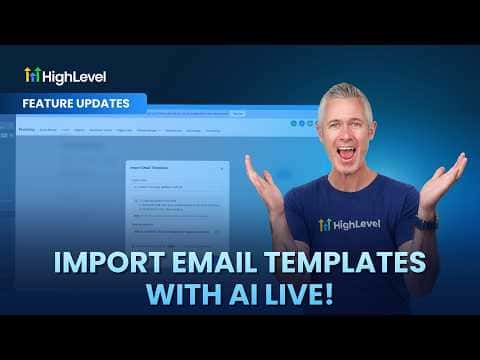
2:03概要. This feature lets you bring existing emails from any sending platform into GoHighLevel by forwarding them to a system-generated address. AI processes the incoming email and recreates it as a drag-and-drop compatible template that you can rename and edit right away. The imported result is fully live in the designer, not a static snapshot.
ステップ
Enable the feature in Labs
The AI email import must be turned on in the Labs section of your account settings before the option appears.
Get the import email address
Inside Marketing, Emails, click the 'Import with AI' option. GoHighLevel generates a unique inbox address for your account.
Forward the email
Take any email you want to import and forward it to the address GoHighLevel gave you. You can also instruct the original sender to send directly to that address.
Wait for AI processing
Click Continue inside GoHighLevel and the system waits for the incoming email. Processing typically takes a few minutes.
Open and edit the result
Once complete, the template appears in your library. Open it in the designer to rename it and make any changes you need.