 6:08
6:08सारांश. This tutorial shows how to wire GoHighLevel to Google Sheets using a webhook trigger in GoHighLevel and a webhook catcher in Zapier. The same pattern works whether you trigger on a tag, a pipeline stage change, or a campaign step, and the Google Sheets write step can map any contact fields that GoHighLevel sends in the payload.
आप क्या सीखेंगे
- Set up a GoHighLevel trigger to fire a webhook on a contact event
- Create a Zapier zap that catches an inbound webhook
- Copy the Zapier webhook URL into GoHighLevel
- Test the connection by applying the trigger condition to a real contact
- Map GoHighLevel contact fields to Google Sheets columns
- Use the same webhook pattern inside a campaign step
स्टेप
Create the GoHighLevel trigger
In GoHighLevel, go to Triggers (or use a workflow) and create a new rule. Name it something clear like 'Webhook to Google Sheets'. Set the condition that should send data, for example, when a specific tag is added to a contact. Set the action to Execute Webhook and leave the URL blank for now.
Create the Zapier zap and get the webhook URL
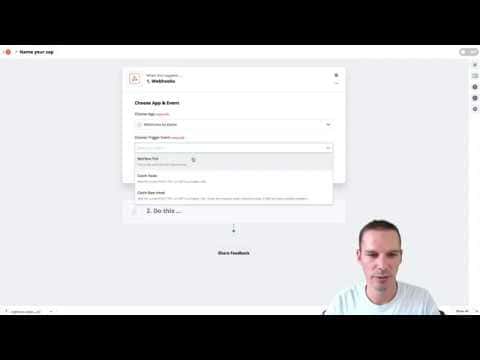
In Zapier, start a new zap. Choose Webhooks by Zapier as the trigger app and select Catch Hook. Zapier generates a unique URL. Copy that URL.
Paste the Zapier URL into GoHighLevel and activate
Go back to your GoHighLevel trigger and paste the Zapier URL into the webhook URL field. Save and activate the trigger.
Fire a test event from GoHighLevel
Go to Contacts and apply the trigger condition to a real contact. For a tag-based trigger, add the tag to a contact that has all the fields you want in your sheet (name, email, phone). GoHighLevel fires the webhook and Zapier records the payload.
Confirm Zapier received the data and continue the zap
Back in Zapier, click Continue and test the trigger. Zapier should show the contact data it received. If it found data, proceed to the next step.
Set up the Google Sheets step
Add Google Sheets as the action app and choose Create Spreadsheet Row. Connect your Google account and select your target spreadsheet and the correct sheet tab. Map each column header to the corresponding field from the webhook payload (first name to First Name column, email to Email column, and so on).
Test and turn on the zap
Run a test to confirm Zapier writes a row to your sheet. If the row appears with the correct data, turn the zap on. From this point, any contact that meets the trigger condition in GoHighLevel will have a row written to your sheet automatically.
टिप्स
- Format your Google Sheet with column headers before building the zap so Zapier can detect them during mapping.
- Use a dedicated test contact with all fields populated so you can verify every column maps correctly.