 3:44
3:44Resumen. This walkthrough covers creating a discount coupon inside GoHighLevel's Payments section and linking it to a membership course offer. It shows how to enable the coupon field on an offer's checkout page, create a coupon with a custom code and either a percentage or fixed discount, and apply optional restrictions like an end date, a redemption cap, or a specific product limit. Once configured, buyers see a coupon entry field at checkout and the discount is applied in real time.
Lo que aprenderás
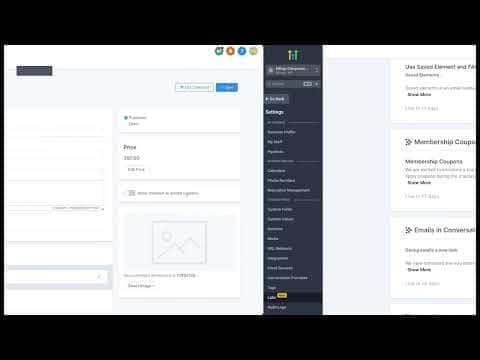
- Enable the Membership Coupons feature under Settings, Labs if it is not yet active
- Toggle coupon acceptance on a membership offer
- Create a coupon under Payments with a custom code and discount type
- Set optional start and end dates for the coupon
- Limit total redemptions or restrict the coupon to specific products
- Confirm the coupon code field appears on the checkout preview
Pasos
Enable the coupons feature in Labs
If you do not see a coupons toggle on your offer, go to Settings, then Labs. Scroll down to find Membership Coupons and switch it on. Return to your offer settings after enabling it.
Enable coupon acceptance on the offer
Go to your membership product and open the offer. Click Edit. Find the 'Allow checkout to accept coupons' toggle and turn it on. Save the offer. Visit the checkout preview to confirm the coupon code field now appears.
Open the Coupons section
In the left menu, go to Payments, then Coupons. Click Create Coupon to open the coupon builder.
Name the coupon and set the code
Enter a descriptive name for your own reference. Then type a coupon code buyers will enter at checkout. You can use the Generate button for a random code, but a memorable code like '20OFF' usually works better for promotions.
Choose the discount type and value
Select Percentage Coupon to give a percentage off the total, or Fixed Coupon to deduct a flat dollar amount. Enter the discount value. A percentage coupon with 20 entered gives 20 percent off.
Set dates and redemption limits
Enter a start date, which is required. The end date is optional. Leave it blank to keep the coupon active indefinitely. Optionally check 'Limit the total number of redemptions' and enter a cap. Check 'Limit to selected products' to restrict the coupon to specific offerings.
Save and test
Click Create. Return to the membership offer checkout preview and enter your coupon code. Click Apply and confirm the discount appears correctly in the order total.
Consejos
- A memorable coupon code converts better than a random string. Use something tied to the promotion, like 'SUMMER25'.
- Setting a redemption limit creates urgency without needing a countdown timer.
- If you run multiple courses, restrict coupons to specific products to avoid accidentally discounting everything.