 3:05
3:05Resumen. GoHighLevel's Copy Contact premium action lets a workflow automatically duplicate a contact record into a different sub-account whenever a trigger fires, such as a form submission. Tags and custom fields transfer with the contact, and if the destination sub-account is missing any of those custom fields, GoHighLevel creates them automatically. The feature removes the need for external automation tools to move contact data between accounts.
Lo que aprenderás
- Enable LC Premium Triggers and Actions at the agency level
- Activate the premium feature for a specific sub-account
- Build a workflow that copies a contact on a form submission
- Choose a destination sub-account inside the Copy Contact action
- Transfer tags and custom fields along with the contact record
- Confirm the contact arrived in the destination sub-account
Pasos
Enable LC Premium Triggers and Actions in Agency Settings
Go to your agency dashboard, click Settings, then Company. Scroll down the right column to find LC Premium Triggers and Actions and turn on the checkbox. Click Enable to confirm.
Activate the Feature for the Source Sub-Account
After enabling at the agency level, navigate to the sub-account where the contact lives. Confirm that LC Premium Triggers and Actions is also toggled on for that specific sub-account.
Create a New Automation in the Source Sub-Account
Inside the sub-account, go to Automation and create a new workflow from scratch.
Add a Trigger
Choose a trigger that fits your use case. Form Submission is a common choice when you want to copy a contact as soon as they fill out a form.
Add the Copy Contact Action
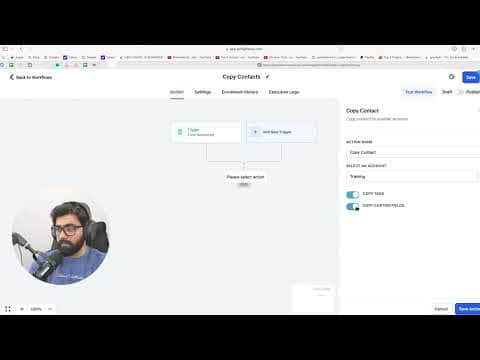
Click the plus button to add an action. Under the Contact heading, find Copy Contact. A gold crown icon marks it as a premium action.
Select the Destination Sub-Account
In the action settings, pick the sub-account you want to copy the contact into from the account dropdown.
Enable Tag and Custom Field Transfer
Turn on the option to copy tags and the option to copy custom fields. If the destination account is missing any custom fields, GoHighLevel will create them automatically.
Publish and Test the Workflow
Click Save, then Publish. Fill out the trigger form with a test contact and verify the record appears in the destination sub-account.
Consejos
- Always enable the feature at both the agency level and the sub-account level before testing, otherwise the action will not appear in the workflow builder.
- Copying custom fields automatically is especially useful when you have complex field setups and do not want to rebuild them by hand in the second account.