 2:09
2:09Resumo. Rental listings in GoHighLevel support per-listing tax configuration, making it straightforward to charge VAT, sales tax, or local hospitality taxes on property and equipment bookings. Each listing's tax settings let you choose a product tax code, decide whether tax is included in the displayed price or added on top, and attach any tax rate already defined in your Payment Settings. If no rate exists yet, a shortcut takes you to the Taxes area to create one before returning to save the listing.
Passos
Open your rental listing
In your sub-account, go to Calendars, then Calendar Settings, then Rentals. Click the pencil icon next to the listing you want to configure.
Go to Inventory and Pricing
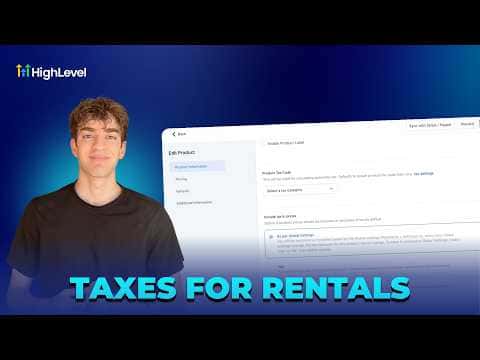
In the listing editor, select Inventory and Pricing from the left menu, then click Configure Tax for This Listing.
Set the tax options
Choose a product tax code, then decide whether tax is included in the price (select Yes) or added separately (select No).
Attach or create a tax rate
Click Attach Tax Rates and select an existing rate. If you have not created one yet, click the plus button to go to Payment Settings and add a rate with a name and percentage. Then return, attach the new rate, and save.