Calendars & Booking

How to Block Off Dates and Times in Your GoHighLevel Calendar

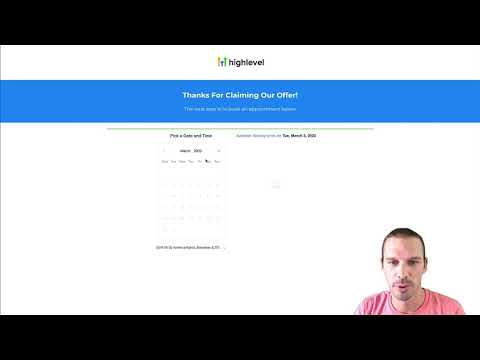
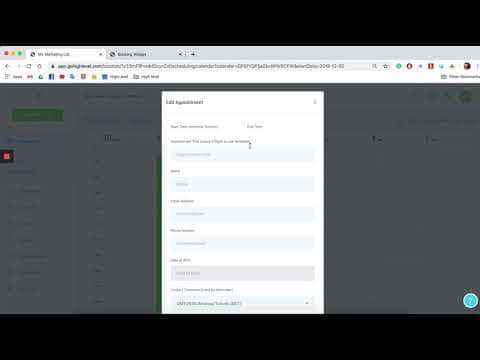
GoHighLevel lets you mark specific days or time slots as unavailable directly from the scheduling calendar. Open the calendar, click any date you want to close, select all day to block the full day, or drag across a time range to remove just those hours. Blocked slots disappear from your booking widget immediately.

Atualizado em 2 de junho de 2026

1:08

Resumo. This walkthrough covers how to close out specific dates or time windows inside a GoHighLevel calendar without deleting or rebuilding it. By clicking or dragging on the scheduling view, any day or portion of a day can be hidden from clients before they ever see the booking widget. The change takes effect as soon as the block is saved.


Perguntas frequentes

Does blocking a date cancel existing appointments on that day?

No. Blocking prevents new bookings only. Existing appointments stay.

Can I block just a few hours instead of the whole day?

Yes. Drag across the specific time range to remove only those slots.

How do I unblock a date I closed by mistake?

Click the blocked slot and remove or delete it from the calendar view.

Crie com quem já criou.

Entre na comunidade gratuita: lives semanais, um curso para começar e criadores no seu idioma.

Entre de graça no Skool