Workflows & Automation

How to Copy Workflows Across GoHighLevel Sub-Accounts

GoHighLevel lets you copy a workflow from one sub-account to another in a few clicks. Open the workflow list in the source sub-account, click the three-dot menu next to the workflow, choose Copy to Sub-Account, pick the destination, and submit. The workflow lands as a draft in the target sub-account ready to customize.

2026年6月2日に更新

2:12

概要. The Copy to Sub-Account option on any GoHighLevel workflow transfers the entire workflow structure to a different sub-account without manual rebuilding. Seven core elements move with it automatically and are created in the destination if they do not already exist. Anything outside those seven elements needs to be recreated in the new sub-account after the copy.

ステップ

  1. Go to the source sub-account's workflows

    Open the sub-account that holds the workflow you want to copy. Navigate to Automation, then Workflows.

  2. Use the three-dot menu to copy

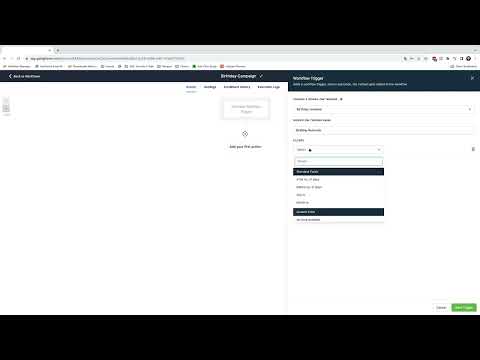
    Find the workflow in the list, click the three-dot icon next to it, and select Copy to Sub-Account.

  3. Select the destination and submit

    Choose the target sub-account from the dropdown and click Submit. The workflow transfers in seconds and appears as a draft in the destination.
よくある質問

How many elements move over when you copy a workflow?

Seven core elements transfer automatically. Others need to be set up in the destination sub-account manually.

Does the copied workflow arrive active or as a draft?

It arrives as a draft so you can review and customize before activating.

Can you copy a workflow to multiple sub-accounts at once?

No. You copy to one sub-account at a time using the Copy to Sub-Account option.

すでに作った人たちと、一緒に作ろう。

無料コミュニティに参加しましょう。毎週のライブ通話、最初に見るコース、あなたの言語のビルダーがいます。

Skoolに無料で参加