 1:57
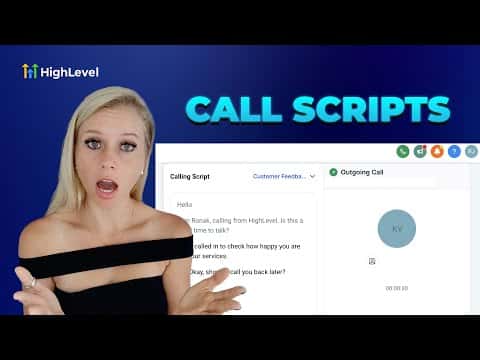
1:57概要. GoHighLevel's built-in call script feature lets admins write structured talking points, objection responses, or compliance prompts that agents can view while dialing from the web app. Scripts are managed under Settings, Phone Numbers, Advanced Settings, and Call Scripts. Once created or updated, the latest version is immediately visible to any user making calls, with no need to redistribute documents or rely on separate tools.
ステップ
Open call script settings
In the sub-account, click Settings at the bottom left, select Phone Numbers, then click Advanced Settings at the top and choose Call Scripts.
Create or edit a script
Click Add Scripts to start a new one, or click the three-dot menu next to an existing script and choose Edit Script. Give the script a clear name and write your content.
Access the script during a call
When placing or receiving a call in the dialer, click the Scripts button at the bottom of the call screen to pull up any available script in real time.