 3:10
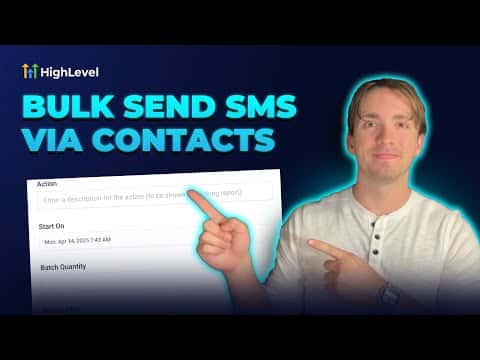
3:10概要. This tutorial covers the bulk SMS feature on GoHighLevel's Contacts page, which allows sending one message to every contact in a filtered list. After filtering for contacts with phone numbers and selecting them all, a single SMS compose window lets you write or choose a template, add custom values, and pick from three delivery modes: immediate, scheduled, or drip. A bulk actions page shows delivery statistics after the job runs.
学べること
- How to filter the Contacts list to only contacts with phone numbers
- How to select all records and open the bulk SMS sender
- How to use SMS templates and custom value fields in the message
- The difference between send all at once, scheduled, and drip modes
- How to set business-hour limits and batch intervals in drip mode
- Where to monitor delivery progress and view sent/skipped stats
ステップ
Filter contacts by phone number
On the Contacts page, open the filter panel, search for Phone, set the condition to 'is not empty', and click Apply. This narrows the list to contacts who can receive an SMS.
Select all matching contacts
Click the checkbox in the column header to select the current page, then click 'Select all records' to include every contact matching the filter, not just those visible on screen.
Open the SMS sender
Click the Send SMS button in the top action bar. A dialog will appear asking you to confirm the recipient count and choose which phone number to send from.
Compose the message
Type your message directly or select an SMS template. Use the custom value tag icon to insert fields like first name. Add links or attachments as needed.
Choose a delivery mode
Select 'Send all at once' for immediate delivery, 'Schedule' to send the full batch at a specific date and time, or 'Drip' to release messages in batches at a repeating interval. Drip mode lets you set batch size, repeat interval, active days, and business hours.
Name the action and send
Enter a name for this bulk action so it is identifiable in the bulk actions log, then click Send SMS. You will see a confirmation and a link to the Bulk Actions page.
Monitor progress in Bulk Actions
Go to the Bulk Actions page from the confirmation link or from the Contacts menu. Find your job, click Show Stats to see how many messages were attempted, sent, and skipped.
ヒント
- Add additional filters like tags, custom fields, or date ranges before selecting all records to target a precise segment rather than your whole list.
- Drip mode with business-hour limits is useful for compliance in regulated industries where contacting people outside certain hours is restricted.