 3:00
3:00Resumo. GoHighLevel's funnel split testing routes traffic between two page variants using a configurable percentage slider. Each variant gets its own URL path, and the platform records unique visitors, opt-ins, and sales per page so you can compare performance. Results update automatically as traffic arrives, and the stats tab gives a detailed multi-page breakdown for deeper analysis.
O que você vai aprender
- How to create a variation page inside a funnel step
- How to clone an existing page as a starting point for a variant
- How to set a custom traffic split percentage between variants
- What metrics the platform tracks per variant (visitors, opt-ins, sales)
- How browser cookies affect split test routing during testing
- How to read the stats tab for a detailed performance breakdown
Passos
Build your funnel page and connect a domain
Before you can split test, your funnel needs at least one page and a domain assigned under Settings, then the Domains tab. The domain is required for the split test URL to work.
Open the funnel step you want to test
Navigate back to the specific funnel step. Click the 'Create Variation' button that appears inside that step.
Choose how to build the variant
You have two options: build a new page from scratch, or clone the existing page. Cloning is faster when you only want to test one small change, like a button color or headline.
Edit the variant page
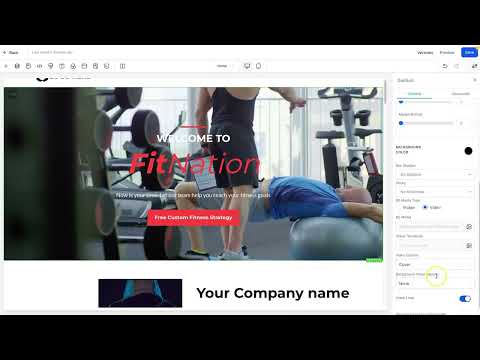
Click 'Edit Page' on the new variant. Make your single change, save the page, and exit back to the funnel overview.
Set the traffic split percentage
Use the traffic slider to assign what percentage goes to each variant. A 50/50 split is common for a clean test. Click Apply and confirm when prompted.
Drive traffic to the split test URL
The platform shows you a single URL above the two variant previews. Send all your traffic to that URL. GoHighLevel routes each visitor to a variant based on the percentage you set.
Monitor results and drill into the stats tab
Results appear between the variant previews as traffic arrives. For more detail, open the Stats tab and toggle the multi-page view to compare visitors, opt-ins, and sales side by side.
Dicas
- Test in an incognito tab or a different browser to see the other variant, since your regular browser gets cookied to one variant on first visit.
- Change only one element between variants. Testing two changes at once makes it impossible to know which change drove the difference.
- Variant URL paths are viewable and editable by clicking the gear icon below the variant preview area.