 10:00
10:00概要. Custom values in GoHighLevel act like reusable variables tied to a sub-account rather than to an individual contact. This overview explains the difference between custom values and custom fields, shows how to create a custom value and embed it into funnel pages using shortcodes, and demonstrates how updating a single value can instantly change details across an entire site, making onboarding and client setup dramatically faster.
学べること
- Understand the difference between custom fields (contact-level) and custom values (account-level)
- Create a new custom value from Settings
- Copy a custom value's shortcode and embed it into a funnel page
- Update a custom value and see it propagate across every page that uses it
- Use custom values to speed up client onboarding with shared snapshots
- Apply custom values to dynamic elements like colors, business names, and contact details
ステップ
Understand when to use custom values vs. custom fields
Use a custom field when the data differs per contact (fitness goal, property type, budget). Use a custom value when the data belongs to the business itself and stays the same across all contacts in that sub-account (brand color, business name, owner phone number).
Create a custom value in Settings
Go to Settings and find Custom Values. Click Add Value. Give it a name (for example, 'Primary Color') and enter the value (for example, a hex color code). Click Create. The value and its shortcode are now available.
Copy the shortcode
Next to each custom value you will see a shortcode in a format you can copy. This is what you paste into pages, emails, or templates.
Embed the shortcode into a funnel page
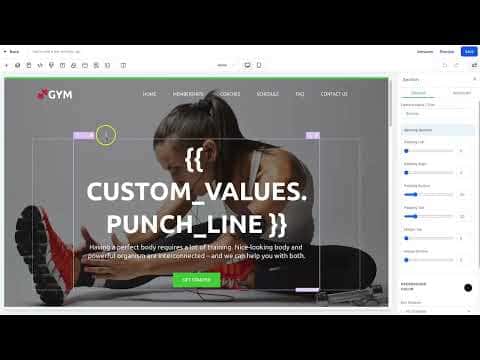
Open any funnel page in the builder. Click on a section where you want to use the value, for example a background color field. Paste the shortcode into that field and confirm. The page now pulls the color from the custom value dynamically.
Update the value and see changes propagate
Go back to Custom Values in Settings and change the Primary Color value to a new color. Any page that uses that shortcode will reflect the updated color without any manual edits to individual pages.
Apply this to snapshot-based client onboarding
When you share a snapshot with a new client's sub-account, the funnel pages reference custom value shortcodes. Update the custom values for that sub-account (business name, phone, color) and the entire site updates at once, saving hours of manual editing per client.
ヒント
- Create custom values for anything you might need to update across multiple pages: phone numbers, addresses, business hours, brand colors.
- When onboarding clients from a shared snapshot, build a checklist of which custom values to update so nothing is missed.